01
Getting started
Your team gets its own copy of Tier IT Up. Whoever owns that copy is the admin. Admins see an Admin console that techs never see, with six tabs: House Rules & Loadout, Case Library, Field Guide, Seasons, Team Day and Reports.
Techs join by opening your team’s link and signing in with their Claude account. They show up on the leaderboard and in team day setup after they open it once.
Your home screen shows a Get your team started checklist with the same steps as below. Click a step to jump to the right tab, and it ticks off when it’s done. Hide it any time.
FIRST-DAY CHECKLIST
- Write your house rules.
- Set your loadout so cases use your tools.
- Draft and publish your Field Guide so new hires can study how you work.
- Play test the built-in cases, so you know what your techs will see.
- Plan this month’s season: five levels and a Case of the Week.
- If you have the Team Days add-on, set a team day.
- Share the link with your team.
Tip: turn on Demo team at the top of the Admin console to fill the leaderboards, the Cup and team day with six sample techs. Only you see them, in your own browser, so you can try everything before your team joins.
02
House rules
House rules are how your MSP expects tickets to be handled. The game master coaches against them during a run, and the grader scores against them at the end. A tech who skips a step your rules require loses points for it, even if they fixed the problem.
Write them in plain language, one per line, up to 4,000 characters. Click an example to add it, then edit it to fit.
| Worth covering | Example |
|---|
| Identity checks | Anyone who calls in gets a callback to the number on file before we change anything. |
| When to remote in | When the fix can be done from the backend, like a script, a policy or an automated deployment, do it that way so users can keep working. |
| Ticket notes | Every note needs the root cause, what we changed and how we confirmed it’s fixed. |
| Sign-off | Purchases, security changes and access requests need approval before we act. |
| Escalation | Escalate to Tier 2 after 30 minutes without progress, or for anything involving a server. |
Tip: keep each rule specific enough to check. “Be careful” can’t be graded. “Confirm with the user before closing” can.
THE FIELD GUIDE
In Admin › Field Guide, click Draft with AI. It writes a study guide from your house rules, your loadout and your team’s recent coaching notes (no names), in four sections: How we work, Our tools, Best practices and Common mistakes. Edit anything, then Publish to techs.
Techs read it from the book icon at the top and tick off sections as they go. After every run, the results screen links to the section for their weakest skill. If you change your house rules or loadout, the tab tells you the guide is out of date so you can redraft it.
03
Loadout
The loadout tells Tier IT Up which tools your techs use. New cases are written for them, so evidence comes back from your RMM and your PSA, and the game master uses your tool names.
| Field | Choices include |
|---|
| RMM | NinjaOne, ConnectWise Automate, Datto RMM, N-able, Kaseya VSA, Atera, Syncro |
| PSA / ticketing | HaloPSA, ConnectWise PSA, Autotask, Syncro, Kaseya BMS |
| Remote access | Built into the RMM, ScreenConnect, Splashtop, TeamViewer |
| Email security | Defender for Office 365, Proofpoint, Mimecast, Avanan, IRONSCALES |
| Productivity suite | Microsoft 365 or Google Workspace |
| Endpoints | Windows, macOS, or both |
| Optional | Phone system, backup, file sharing, servers, firewall |
Anything not in a list, choose Other and type it in. Use Anything else in your environment for the rest, such as your MFA, device management, password manager or line-of-business apps.
Note: the built-in cases are written for Microsoft 365 on Windows. Cases you draft in the Case Library follow your loadout.
04
Building cases
The Case Library holds every case: the built-in ones and the ones you draft. A new case goes through three stages: DRAFT APPROVED RETIRED. Techs only ever play approved cases.
1 · Draft with AI
Fill in the draft form and click Draft with AI. It takes a minute or two.
- Game mode: Ticket Detective, Escalation Relay or Showdown.
- Level: 1 is the easiest, 5 the hardest.
- Suite and endpoint: filled in from your loadout.
- Topic: for example OneDrive sync, printing, VPN, MFA or Teams audio.
- Idea (optional): a real ticket you want turned into a case, or a skill you want your techs to practice.
The AI writes the whole case: the ticket in the user’s words, the hidden root cause, every tool result, decoys, harmful moves, bonus eggs and grading notes. It avoids reusing names, clients and devices from your other cases.
2 · Review it
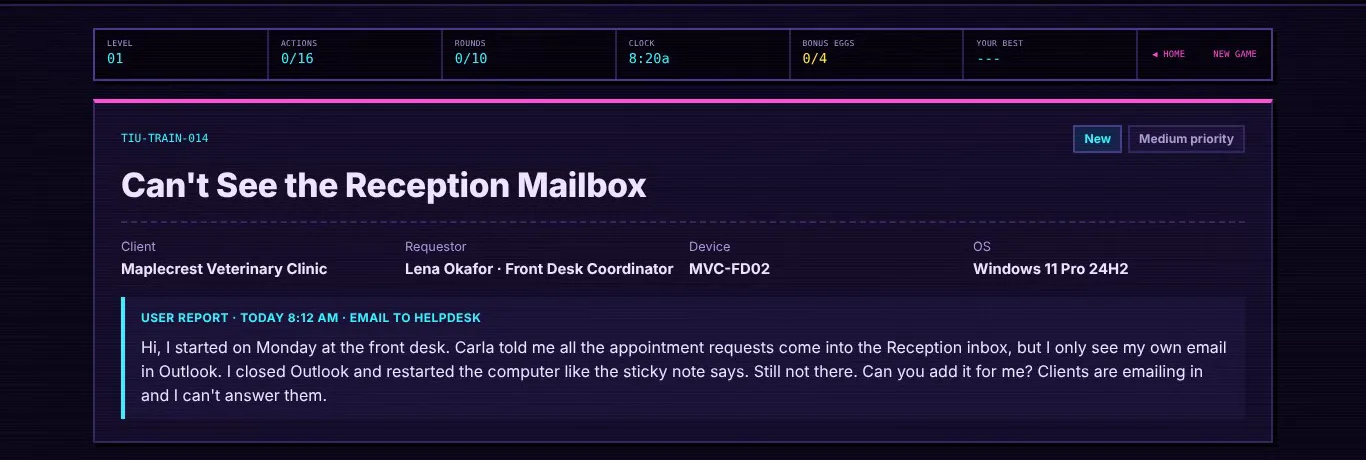
Every draft opens in a review screen that shows you the answers your techs never see:
- the ticket, and what’s really going on;
- a strong approach, step by step;
- every tool and action, what it shows, and its effect: fixes it, proves the cause, finds an egg, causes disruption, or a silent backend fix;
- which evidence proves the cause;
- the bonus eggs and their clues, and the grading notes.
If the draft has problems, they’re listed at the top and the case can’t be approved until they’re fixed.
3 · Play test it
Click Play test to play it exactly as a tech would, or Play test with hints to walk through it with guidance. Play tests don’t count toward any leaderboard.
4 · Approve, or send it back
Approve puts it in the library, ready to schedule. To change something, use Send it back with notes in plain language, for example “Make the root cause less obvious” or “The fix should be done from the backend,” and the AI revises it. Every note is kept with the case.
Retire takes a case out of rotation without deleting it, and Restore brings it back.
TURNING A REAL TICKET INTO A CASE
Describe the problem, not the client. Leave out real names, email addresses, passwords and anything else that identifies a client or user. The AI invents a fictional client, user and device for every case.
Advanced: the review screen has Edit the case file for direct changes. If an edit introduces a problem, an approved case goes back to draft until it’s fixed.
05
Planning seasons
A season is one calendar month. In Seasons you plan this season and the next:
- Ticket Detective levels: five cases, Level 1 to Level 5. Level 1 is open to everyone; each level after that unlocks when a tech clears the one before with a C or better.
- Case of the Week: one case for each week of the month.
- Team day: the date, plus the Relay and Showdown cases.
Only approved cases can be scheduled. A season you haven’t planned shows default picks until you save it, and the planner warns you about any empty level or unapproved case.
Review week: the last week of each month is for getting next month ready. Draft, play test and approve its cases, then save the plan. Techs see changes as soon as you save.
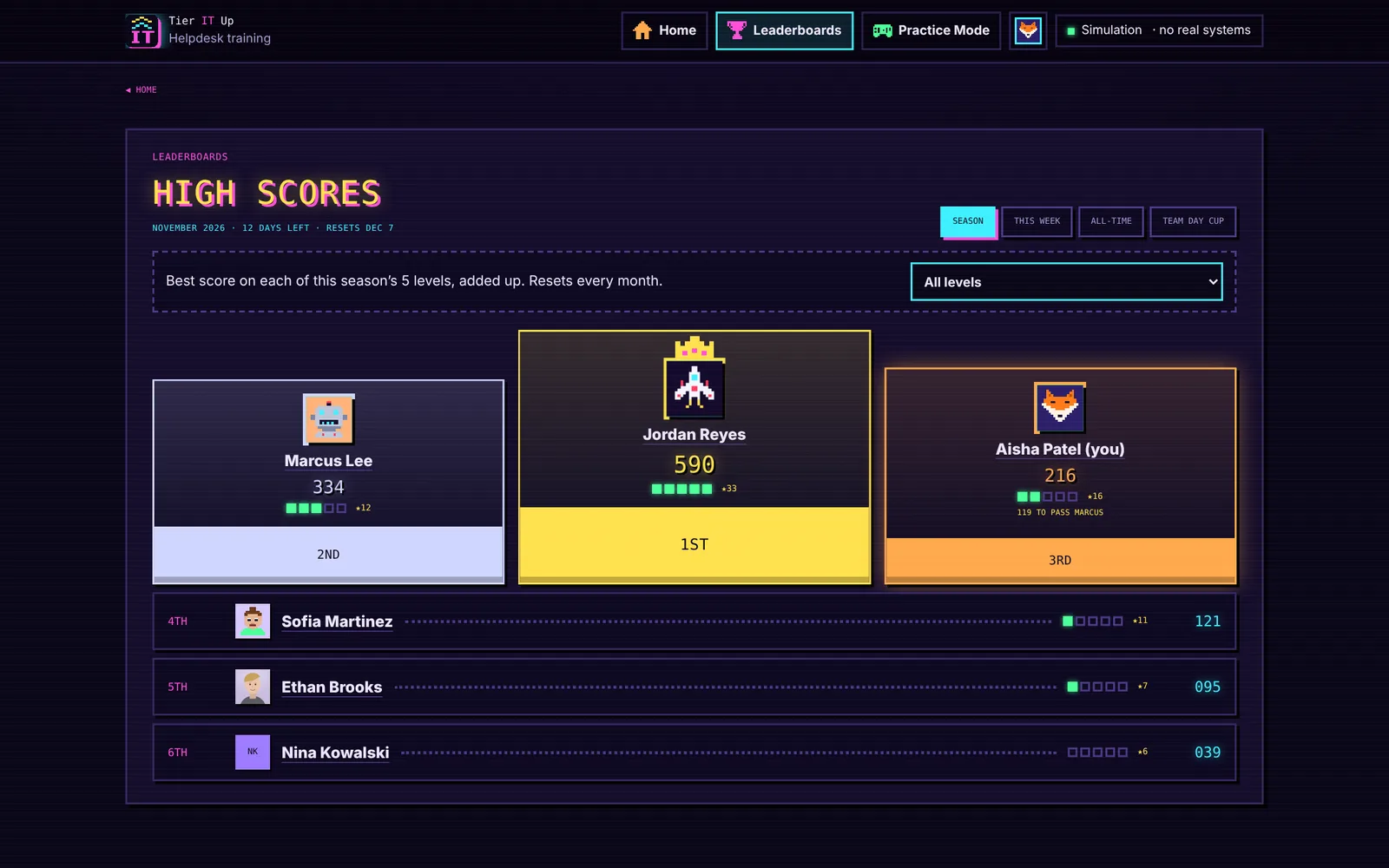
Leaderboards reset each season. Past seasons lists each month and its MVP.
06
Running a team day
Once a month, the team plays together in two modes. Set the date and pick both cases in Seasons first, then set it up in the Team Day tab.
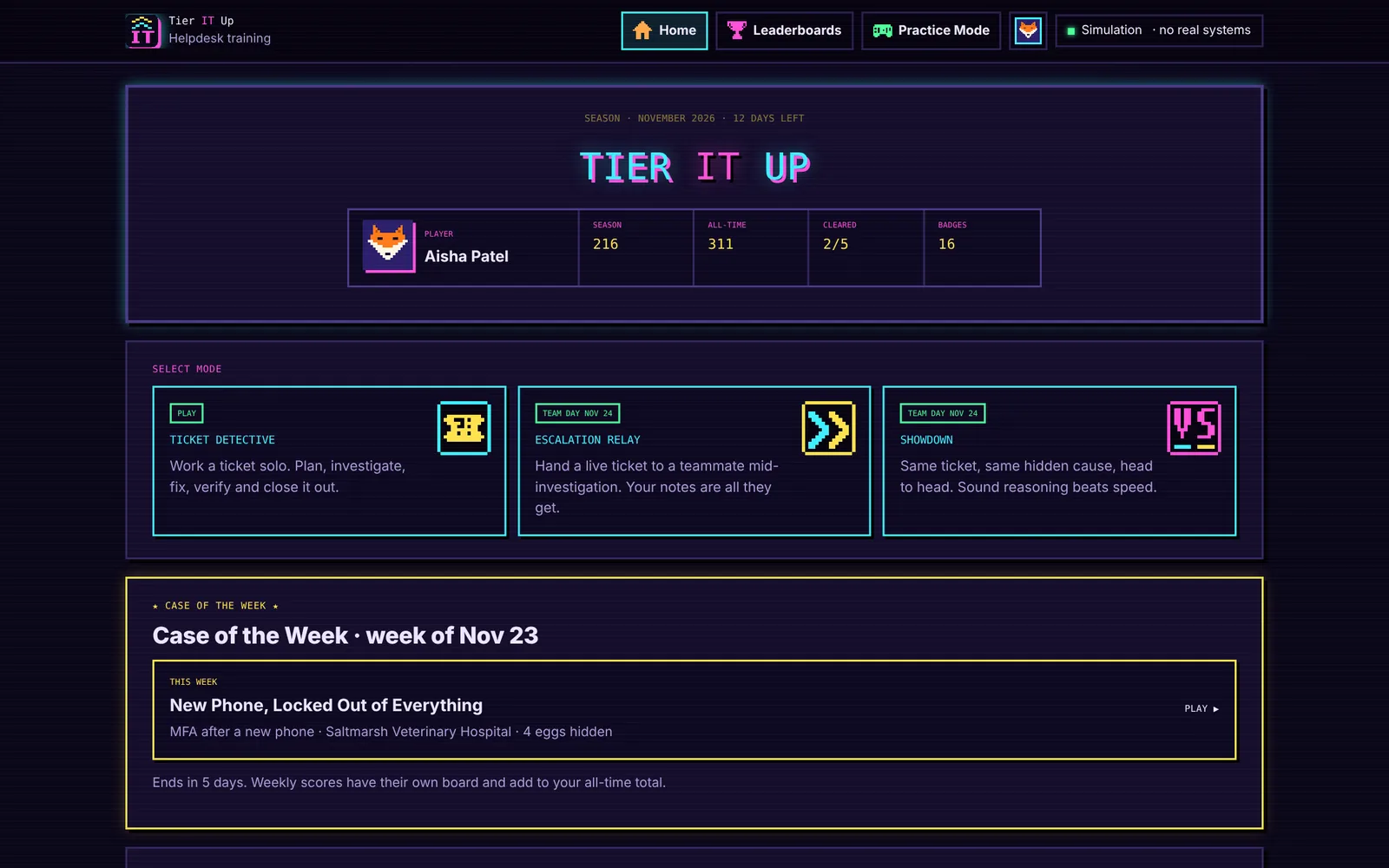
Team days are an add-on (+$49/month). Turn on Team Days add-on at the top of House Rules & Loadout to add the Relay, Showdown, the Team Day Cup and team badges. With it off, they’re hidden for everyone; solo cases, seasons, recaps and leaderboards work the same either way. Team days work best with 6 or more techs.
ESCALATION RELAY
Teams of 2 to 4 techs work one ticket in legs. Each leg investigates and hands off with a note; the last leg has to close the ticket from the note alone. Build teams by hand or click Make teams automatically, which uses your techs only and sizes teams to fit.
SHOWDOWN
Everyone plays the same case. Choose Free-for-all, where the best score wins, or 1v1 matches in pairs. Tick who’s playing; with an odd number in 1v1, one tech sits out.
- Save team day to lock in the teams and players.
- Open team day when you’re ready. Techs can play their legs and enter the showdown. Pause stops play if you need to.
- Close and post results when everyone’s done. Cup points and team day badges are awarded.
- Open the Team Day Recap on the big screen to walk through the results together.
Team Day Cup: each team day awards points by place: 10, 7, 5, 3, 2 and 1 for first to sixth. In 1v1 matches, a win is worth 10 and a loss 3. Points add up across the year, and the leader takes the Cup once the year has had at least 3 team days. Techs tied on points share a place, and relay teams tied on score are split by the faster finish. If there’s only one relay team, it plays against a target score of 80 instead of another team, and Podium needs at least 4 showdown finishers, so small teams don’t get automatic wins.
07
How scoring works
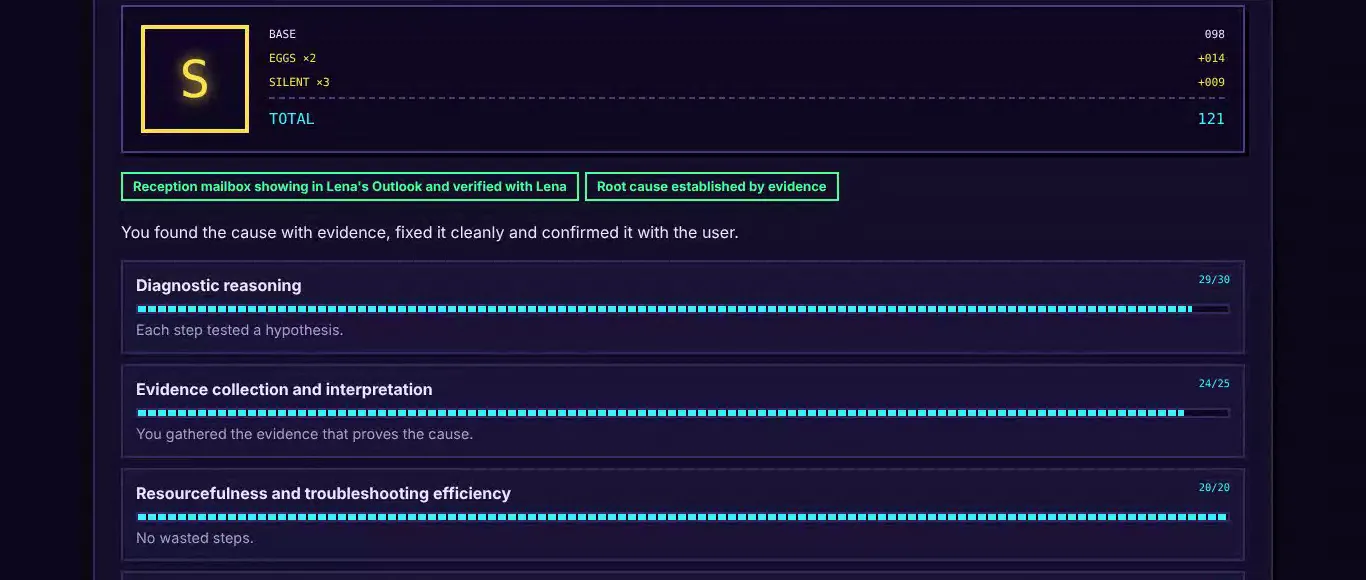
Every run is graded out of 100, like a lead would grade a ticket, with a comment on each area:
| Area | Points |
|---|
| Diagnostic reasoning | 30 |
| Evidence collection and interpretation | 25 |
| Resourcefulness and troubleshooting efficiency | 20 |
| Safety, remediation and verification | 15 |
| Conclusion and documentation | 10 |
S95+A85+B70+C55+Dunder 55
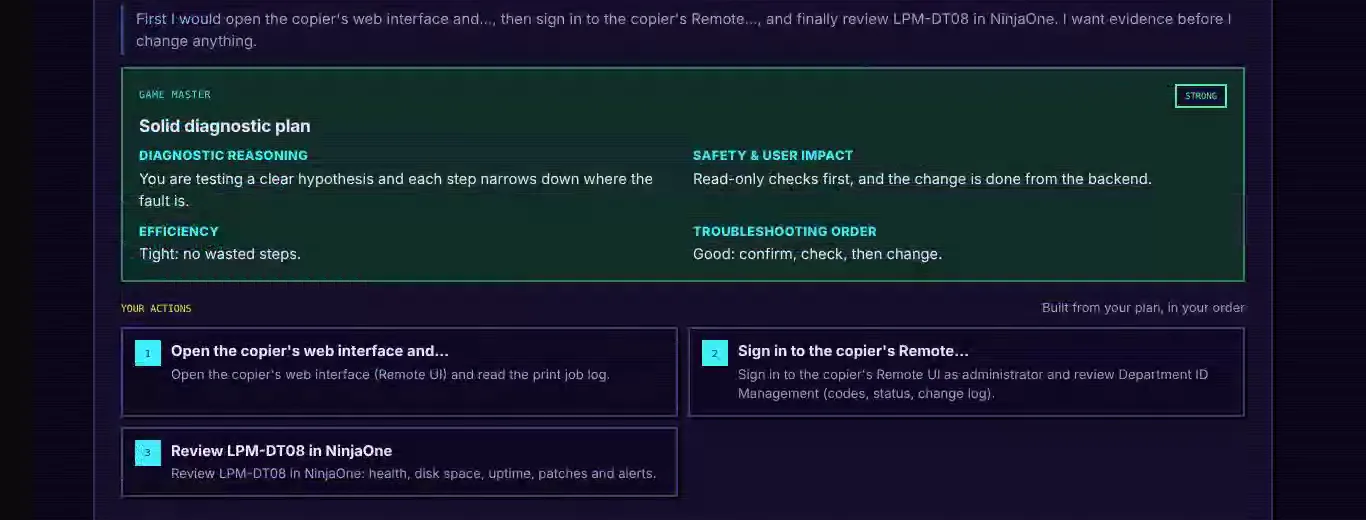
A C or better clears a level and unlocks the next. Bonus eggs and silent backend fixes add points on top of the 100, so the best runs score over 100. Plans are rated Strong, Reasonable, Needs work or Unsafe as techs go.
The case engine decides what’s true in every case, so the AI can’t invent or change the facts, and every tech is graded on the same evidence.
08
Reports
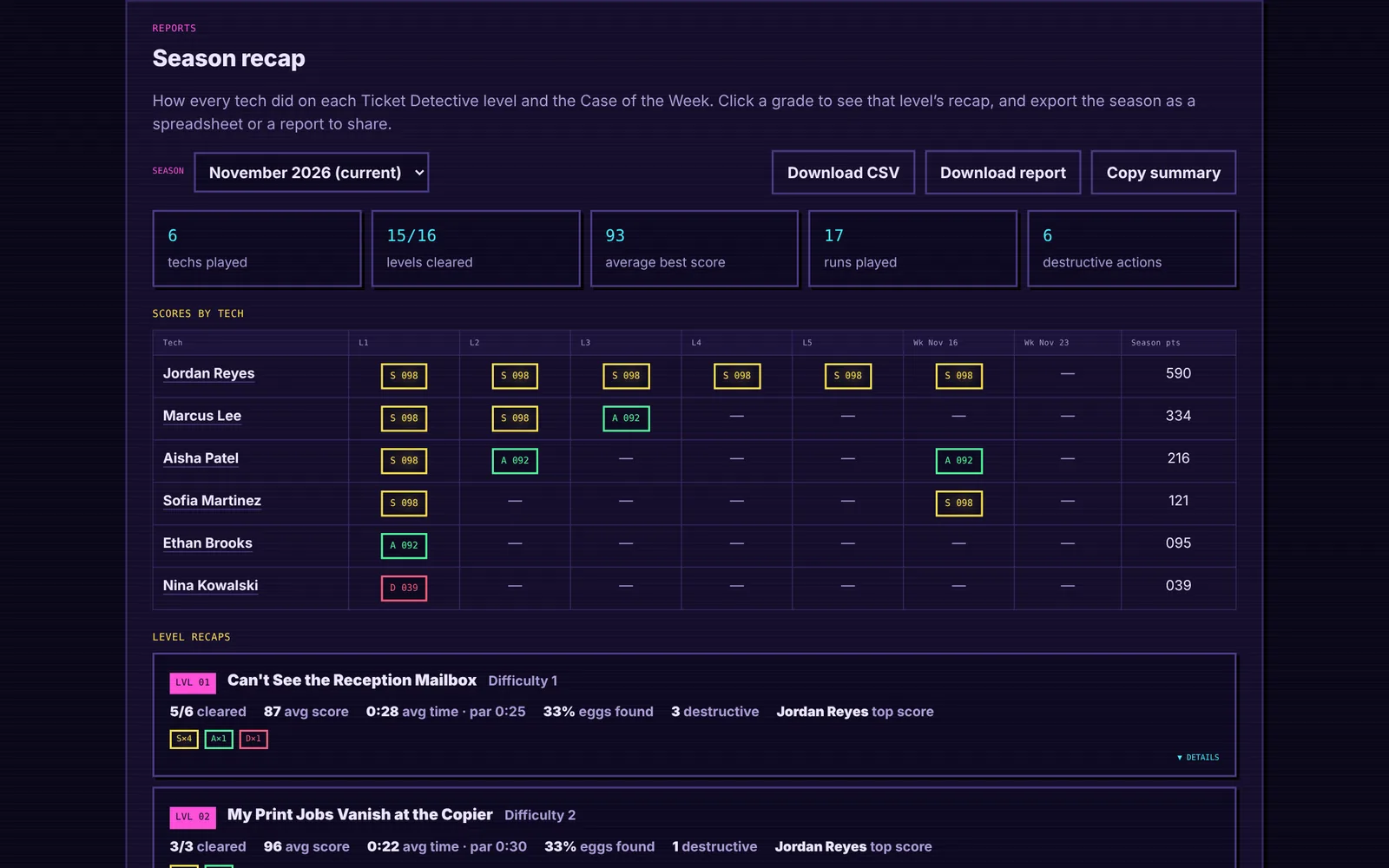
Reports opens on the newest season with results. At the top is the team recap: the team’s average grade, cases played, most improved, the team’s weakest skill, and a row for each tech with their strongest skill, what to focus on next and a status (Tier 2 ready, On track, Check in at 1:1 or Quiet this season). It ends with suggestions for next season and a 1:1 question for each tech. Open recap shows that tech’s own recap.
Every tech also gets their own season recap in the app when the season ends: their grade against last season, skill bars, what went well, and what to work on with a case to practice for each. Only they and you can see it, and it downloads as a file to keep or print.
Below the team recap, you’ll see:
- Scores by tech: each tech’s best score on every level.
- Level recaps: how many played and cleared, the average score, the top run, average time against par, harmful actions, how often eggs were found, and the grade spread.
Then Download CSV for a spreadsheet, Download report for a formatted page to share, or Copy summary to paste into an email or Teams.
Tier 2 ready means an A average or better over 4 or more runs, with every skill at 70 or higher. Recaps are built only from recorded runs and the grader’s own notes. Use them to coach, not to rate performance.
Tip: scores show each tech’s best run. Time, fixes, harmful actions and root cause come from their latest run, which is the better sign of where they are now.
09
Admin FAQ
Do my techs need a Claude account?
Yes. Each tech signs in with their own Claude account, and the AI in their runs uses their Claude plan.
Can techs see the answers?
No. The review screen, root causes and grading notes are only in the Admin console. Techs see the ticket and the evidence their actions return.
Do play tests count on the leaderboard?
No. Admin play tests never count toward scores, badges or seasons.
A draft failed or came back with problems. What now?
Click Draft with AI again. If the draft had a formatting slip, Tier IT Up already asks the AI to fix it once by itself. For a draft with problems, use Send it back with notes and ask for the fix.
Can I change a case after approving it?
Yes, with Edit the case file on its review screen. If the edit causes a problem, the case goes back to draft until it’s fixed, so techs never play a broken case.
What happens to a tech’s progress at the end of the month?
The season leaderboard resets, but nothing is lost. All-time scores, badges and the Team Day Cup carry on, and past seasons stay in Reports.
Can I use Tier IT Up with Google Workspace or Macs?
Yes. Set your suite and endpoints in the loadout, and new cases you draft are written for them.
Can techs see each other’s recaps?
No. Each tech sees only their own recap. Admins can open any tech’s recap from the team recap in Reports.
Is the Field Guide our official policy?
It’s a training guide written from your house rules, and it says that the manager’s direction always wins. You review and edit every word before techs see it.
Do we have to do team days?
No. Team days are an optional add-on for $49 a month. Tier IT Up is built around solo training, so everything else works without them. If you add them, turn on Team Days add-on in House Rules & Loadout.
How do I report a problem or suggest something?
Email [email protected]. The link is also at the bottom of the home screen and at the top of the Admin console.
WANT A WALKTHROUGH?
We’ll set up your house rules and loadout with you, and build your first season together.
Book a demo
 ANY TIME
 TEAM DAYS ADD-ON
 TEAM DAYS ADD-ON